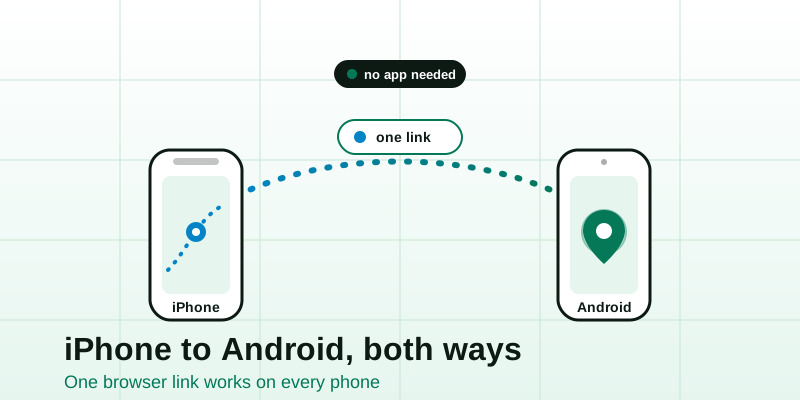
Find My is brilliant — as long as everyone you love owns an iPhone. The moment one person in the group carries an Android phone, the whole thing falls apart: there's no "Find My" to invite them into, and Android has never shipped a built-in equivalent that an iPhone can join. So mixed-device families, couples, and travel groups end up stuck, downloading and re-downloading apps that half of them never open. This guide walks through every reliable way to share your location from iPhone to Android and back — and why a no-account browser link is usually the calmest answer.
Why iPhone-to-Android location sharing is genuinely hard
It isn't your imagination, and it isn't a setting you've missed. The friction is built into the platforms.
- Find My is Apple-only. It's woven into iCloud and ships on every iPhone, but there is no Find My app for Android. An Android user simply cannot be invited to see your Find My location, full stop.
- Android has no single native counterpart. There's no system-level "Find My" that iPhones can join from the other direction. Google's location sharing lives inside the Google Maps app, not in the operating system, so it's a per-app feature rather than a built-in one.
- The "just download X" tax. The common workaround is to make everyone install the same third-party app and create the same account. That's the part that breaks down — the one person who never opens it is always the person you needed to find.
So the real question isn't "what's the Android version of Find My?" There isn't one. The question is: what works across both phones without forcing everyone onto the same app?
Your options, ranked by how much setup they demand
There are exactly three families of solutions for crossing the iOS/Android divide. Here's the honest trade-off for each.
| Method | Works iPhone ↔ Android? | Everyone needs the same app? | Accounts required? | Best for |
|---|---|---|---|---|
| Google Maps sharing | Yes | Google Maps + a Google account | Yes, both sides | People already living in Google |
| WhatsApp live location | Yes | WhatsApp on both phones | Yes (phone number) | Groups already chatting in WhatsApp |
| No-account browser link | Yes | No — any browser opens it | No — neither side | Mixed groups, one-offs, "just this once" |
All three genuinely work across platforms. The difference is how many people you can lose along the way — and the more setup a method demands, the more people drop off before they ever see your dot.
Method 1: Google Maps (when everyone has a Google account)
Google Maps location sharing is cross-platform by design, because the Maps app exists on both iOS and Android. It's the closest thing to a "Find My that an Android can join," with one catch: both people need the Maps app and a Google account.
From an iPhone
- Open Google Maps and tap your profile picture in the top right.
- Choose Location sharing, then Share location.
- Pick a duration (a set number of hours, or Until you turn this off).
- Select the contact, or copy the share link to send to your Android friend.
From an Android phone
The steps are identical — profile picture, Location sharing, Share location — which is exactly why it works in both directions. The Android user can share back to an iPhone the same way.
The catch: the recipient really does need a Google account signed into Maps to see you reliably, and you're sharing through your Google identity. For people already deep in the Google ecosystem this is smooth. For everyone else, it's another login to chase down.
Method 2: WhatsApp live location (when the chat already exists)
If your mixed-device group already talks in WhatsApp, this is the lowest-effort real-time option, because WhatsApp runs the same on iPhone and Android.
- Open the chat with the person (or group) you want to share with.
- Tap the attachment icon (the + or paperclip), then Location.
- Choose Share live location, pick a duration (15 minutes, 1 hour, or 8 hours), and confirm.
Your dot streams inside the chat until the timer ends, and an iPhone and an Android in the same conversation both see it move. The limits: everyone needs WhatsApp installed and your share is tied to your phone number and profile, so it's not anonymous and it can't run indefinitely. It's great for "we're 20 minutes out," less ideal for a stranger you're meeting or a one-time handoff.
Method 3: a no-account browser link (the real cross-platform fix)
Here's the method that sidesteps the whole problem. Instead of asking everyone to converge on one app, you share a web link. A link doesn't care what phone you have — Safari on an iPhone and Chrome on a Pixel open the same URL and show the same moving dot. Nobody installs anything, and nobody signs in.
The flow is deliberately boring, which is the point:
- On your phone (iPhone or Android, it doesn't matter), open the live location tool and tap Start. Allow the browser's location prompt and it grabs a fresh GPS fix.
- You get an unguessable link. Send it however you already talk — text, email, any chat app.
- They tap it. The page opens on the view live location screen in whatever browser they have, and they watch your dot move. No app, no account, no platform mismatch.
This is why a browser link is the honest answer to "Find My, but for Android": it ignores the platform divide entirely because the web is the one thing both phones already share. For a step-by-step on starting and stopping cleanly, see how to share your live location safely.
A worked example: an iPhone meeting an Android
Say you're on an iPhone, driving to meet a friend who's on a Galaxy, and neither of you wants to install anything new:
- You open the live location tool in Safari and tap Start; you allow the location prompt.
- You copy the link it generates and text it to your friend.
- Your friend opens it in Chrome on their Android. Your dot appears and tracks toward them in real time.
- You arrive, tap Stop, and the link goes dark. No leftover app sharing your location next week, nothing to remember to turn off.
That's the entire interaction — and it works exactly the same if the roles are reversed and the Android user is the one sharing to an iPhone.
Do I still need each other's phone number or account?
This is the quiet advantage of the link approach, and it's worth spelling out because it's where privacy lives.
| What gets revealed | Google Maps | No-account link | |
|---|---|---|---|
| Your name / profile | Yes (Google profile) | Yes (WhatsApp profile) | No — just a dot |
| Your phone number | No | Yes | No |
| An account on either side | Yes | Yes | No |
| Ends automatically | If you set a timer | Yes, on the timer | When you stop it or the timer ends |
With a browser link, the other person sees a position on a map and nothing else about you — no name, no number, no profile. And because there's no account and no installed app, there's no background service quietly sharing your location after the moment has passed. When you tap Stop, it's genuinely over. If you want to understand exactly what does and doesn't get sent, our note on whether live location sharing is safe goes deeper.
When you don't need "live" at all
A lot of cross-platform headaches disappear once you notice you didn't need a moving dot in the first place. If the other person just needs to know where you are right now — a meeting spot, a trailhead, the exact door of a building — send a single pin instead of a live stream.
A static share with share my location drops one precise point that opens in any maps app on any phone. It can't drift, can't keep running, and there's nothing to switch off afterward. And if the whole problem is that you and a friend on different phones are trying to converge, skip the back-and-forth and let the meeting point tool find a fair halfway spot you can both navigate to. For longer-distance coordination tasks built around exact coordinates, the dedicated GPS toolbox at locations.app is worth a look.
The short version
There is no Android version of Find My, and there never has been — so stop hunting for one. To bridge an iPhone and an Android:
- Already all-in on Google? Google Maps sharing works both ways.
- Already chatting in WhatsApp? Live location inside the chat is fine for short, named shares.
- Mixed group, a one-off, or someone you'd rather not hand your number to? Send a no-account link — it's the only method that asks nothing of the other person's phone.
The next time half your group is on iPhone and half on Android, don't make everyone download the same app and create the same account. Open the live location tool, tap Start, and send the link. Both phones open the same page, both people watch the same dot, and when you arrive you tap Stop and it's done — no platform, no install, no account in the way.