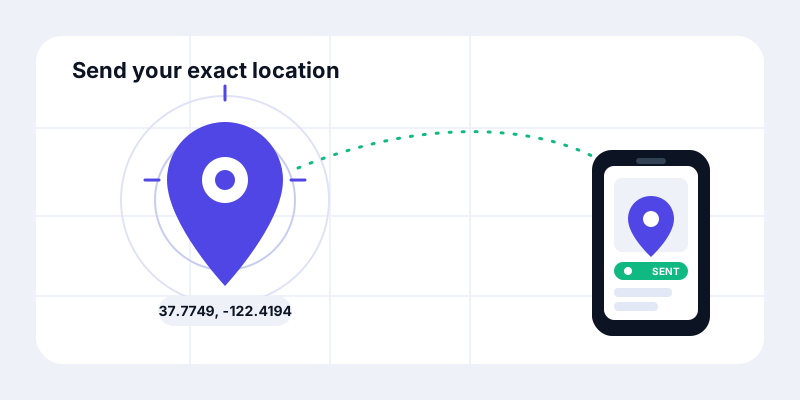
Someone's waiting for you, the directions got muddled, and "I'm by the big tree near the entrance" isn't landing. The fastest fix isn't more words — it's sending your exact spot as a link they can tap and open on a map. No app to install on their end, no typing coordinates, no guessing. This guide shows you how to do it in about ten seconds, on a phone or a computer, and exactly what the other person will see when it arrives.
First, pick: a snapshot or a live link?
There are two ways to send your location, and choosing the right one takes a second:
- A snapshot link sends one fixed point — where you are right now — and it never moves. Perfect for "meet me here," dropping the precise corner of a parking lot, or telling a friend which bench you're on. This is what most people actually need.
- A live link sends a dot that keeps updating as you walk or drive, so the other person watches you approach in real time. Reach for this when the movement is the point: meeting in a crowd, an active journey, or a "let me know you got home."
If you're not sure, start with a snapshot. It's lighter on battery, there's nothing to switch off afterward, and you can always send a live link next if plans change.
Send a snapshot link in 10 seconds
On your phone
This is the quickest path and works straight from a browser — no account needed.
- Open share my location. Your phone asks permission to use your location; tap Allow. (Allow "once" or "while using" if your phone offers it — you don't need to grant it forever.)
- Wait for the pin to settle. Give GPS a moment to tighten up; the dot will snap to your real spot within a few seconds.
- Tap "Copy link" or "Share." Copy puts it on your clipboard; Share opens your phone's normal share sheet so you can fire it straight into Messages, WhatsApp, or email.
- Send it to one person in a private chat — not a public post. Done.
The whole thing is faster than typing out cross-streets, and the recipient gets a tappable pin instead of a description they have to decode.
On a computer
On a laptop or desktop it's nearly identical. Open share my location in your browser and click Allow when it asks for location. A computer usually locates you from Wi-Fi and network signals rather than a GPS chip, so the point may be a little looser — fine for "I'm at this cafe," less ideal for "the third door on the left." When the pin looks right, copy the link and paste it into your chat or email.
One quick tip: if the desktop pin lands in the wrong neighborhood, send it from your phone instead. Phones almost always place you more accurately because they have real GPS hardware.
Sending a live link instead
When you want the other person to follow you rather than just find one spot, send a live link.
- Open live location and start a share. You'll get a private, unguessable link.
- Set how long it runs — a bounded window like "one hour" is the safest default, because an open-ended share is the one you forget about.
- Send the link to the person who's waiting. As you move, your dot updates for them every few seconds.
- Stop when you arrive. Tap stop (or let the timer expire) and the dot goes offline at once — no lingering trail.
Curious what it looks like from the other side before you send one? Peek at view live location to see the recipient's view of a moving dot.
Just need the raw coordinates? Copy those instead
Sometimes a person (or an app) wants the actual numbers — to paste into a maps app, a delivery note, a rescue call, or a spreadsheet. Open what are my coordinates, let it find you, and copy the latitude and longitude. A couple of pointers so they arrive usable:
- Decimal degrees (like `37.7749, -122.4194`) is the format that works almost everywhere — paste it into any maps search box and it jumps right to the point.
- Keep the order: latitude first, then longitude. Flipping them sends people to the wrong continent.
- Five decimal places is roughly a meter of precision — plenty for "this exact doorway." You rarely need more.
What the recipient actually sees
This is the part that makes sending a link feel safe: the person on the other end gets exactly what you intend, and nothing more.
| You send | They tap the link and see | What happens after |
|---|---|---|
| Snapshot link | A single pin on a map at your spot, with directions a tap away | It stays put — it's a fixed point, not a tracker. It never updates. |
| Live link | Your dot moving on a live map as you travel toward them | It goes offline the moment you stop the share or the timer ends. |
| Coordinates | Plain numbers they can paste into any map or app | Nothing — it's just text, with no link back to you. |
In every case, only the person you handed the link to can open it. Nothing is posted publicly, listed, or searchable, and a snapshot never quietly turns into ongoing tracking.
A few habits that keep it private
- Send to one person, in a private channel. A direct message — not a group thread or a public post — keeps your location with the people who need it.
- Prefer "allow once." If your browser or phone offers a one-time location grant, take it. You don't have to hand over standing access just to send a single pin.
- Use a snapshot when a snapshot will do. It can't keep tracking you, so there's nothing to remember to turn off.
- For live shares, set a timer. Let the share end itself rather than relying on future-you to stop it.
Send your location now
That's the whole trick: skip the descriptions and send a spot people can tap. For a one-time "meet me here," open share my location and copy the link. If you want someone to follow you as you move, start a live location share instead — and if they just need the raw numbers, grab them from what are my coordinates. All three run in the browser, free, with no account to set up first.