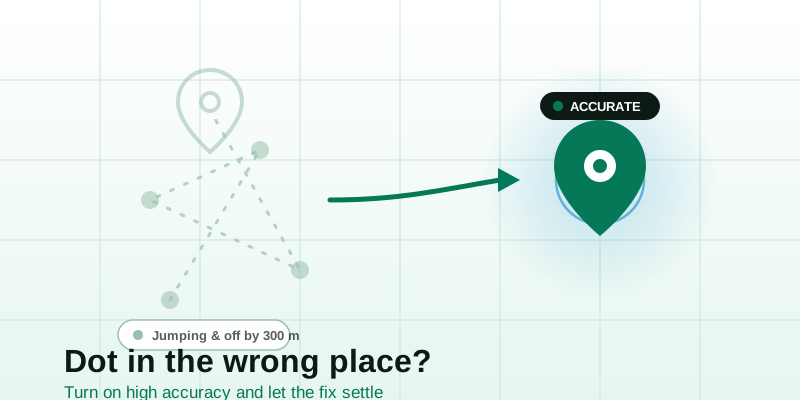
Your dot is alive and updating — it just keeps insisting you're a block over, on the wrong side of the river, or it teleports across town and snaps back a second later. That's a different problem from a frozen share: the loop is working, but the position it's reporting is wrong. This is almost always an accuracy problem, not a connection one, and it comes from how phones figure out where they are when GPS alone isn't enough. Here's what's really happening and how to get an honest dot — on iPhone and Android.
Why a live dot lands in the wrong place
Your phone doesn't have one location sensor — it blends several, and when the best one is weak it leans on the others. That blend is usually invisible and brilliant. When it goes wrong, your dot ends up confidently in the wrong spot:
- Wi-Fi positioning guessed wrong. Indoors and in cities, phones estimate location from nearby Wi-Fi networks looked up in a crowd-sourced database. If a router moved house — or the database is stale — your phone places you wherever that router used to live, sometimes streets or suburbs away.
- Precise location is off. If the app only has "approximate" permission, the system deliberately hands it a fuzzy, rounded position. The dot looks placed, but it's snapped to a coarse grid.
- Indoor multipath. Satellite signals bounce off buildings before reaching you, so the phone measures a longer path and mis-triangulates. This is why your dot drifts and jumps near tall buildings, in malls, and underground.
- No real GPS fix yet. In the first few seconds after you start sharing, the phone hasn't locked onto satellites — it broadcasts a rough cell-tower or Wi-Fi estimate first, then tightens up. Share too fast and your first dot can be a kilometre off.
- A cached or VPN location. A stale last-known position or a VPN that changes your apparent IP can land an IP-based estimate in another city entirely.
The tell-tale difference from a frozen share: here the dot keeps moving and the timestamp is current — it's just placed wrong. That points you at accuracy settings, not battery or network ones.
Wrong place vs. jumping around: read the symptom first
Two failure modes look similar but have different fixes. Match what you're seeing before you start toggling settings.
| What you see | Most likely cause | First thing to try |
|---|---|---|
| Dot steadily in the wrong spot, current timestamp | Wi-Fi positioning or approximate location | Turn on Precise / High accuracy, then re-fix outdoors |
| Dot jumps far away then snaps back | Multipath indoors / weak satellite lock | Step outside; wait 20–30 seconds for a real fix |
| Dot offset by a consistent few metres | Normal GPS margin of error | Nothing — this is expected, see below |
| Dot in another city entirely | VPN / IP-based fallback, no GPS | Disable VPN; confirm location permission is granted |
| Accurate outdoors, wanders indoors | Lost satellite line-of-sight | Expected; it self-corrects near windows / outside |
If the timestamp is stale rather than the position wrong, you have the other problem — a frozen dot — and the fix is different. That's covered in live location not updating.
Fix inaccurate location on iPhone
Work these in order. The first two solve the large majority of "wrong place" reports.
- Turn on Precise Location for the app. Settings › Privacy & Security › Location Services, tap the app (or your browser, e.g. Safari), and switch Precise Location on. With it off, iOS hands out a deliberately coarse position — that's the single most common cause of a dot that's "close but wrong."
- Confirm Location Services is on at all. Same screen, master switch at the top. If it's off, your phone falls back to IP-based guessing, which can be wildly off.
- Re-fix outdoors. Step away from buildings, hold the phone with a clear view of the sky for 20–30 seconds, and let the dot settle. The first reading after you move into the open is often the one that corrects.
- Disable any active VPN. Settings › VPN (or your VPN app). A VPN can drag IP-based location to its server's city. GPS overrides this once it has a fix, but during fallback the VPN wins.
- Turn off then on Location Services to clear a stale fix. Toggling the master switch forces the phone to discard its cached last-known position and acquire a fresh one.
- Restart the phone if it's stubborn. A reboot clears a wedged location daemon, which occasionally pins the wrong Wi-Fi estimate until restarted.
Quick iPhone calibration
The Compass and Maps apps both improve location accuracy as a side effect. Open Maps, tap the location arrow, and walk a short distance — the blue dot's accuracy circle should shrink as the phone fuses motion data with GPS. A tight circle means a trustworthy share.
Fix inaccurate location on Android
Wording shifts by maker (Samsung, Pixel, Xiaomi), but the levers are the same.
- Turn on Google Location Accuracy. Settings › Location › Location services › Google Location Accuracy (sometimes "Improve Location Accuracy"). On, this fuses GPS with Wi-Fi, mobile networks and sensors for a tighter fix. Off, you're on raw GPS alone, which struggles indoors and near buildings.
- Grant precise location to the app. Settings › Apps › [app or browser] › Permissions › Location, then enable Use precise location. "Approximate" deliberately rounds your position to a vague area.
- Re-fix in the open. Move away from walls and overhangs, hold steady for 20–30 seconds, and let the dot converge before you trust it.
- Disable VPN during the share. As on iPhone, a VPN can hijack the IP-based fallback and drop you in another city until GPS catches up.
- Toggle Location off and on. The quick-settings Location tile, off then on, drops the cached fix and re-acquires.
- Recalibrate the compass. Open Google Maps and do a figure-eight wrist motion when prompted; a mis-calibrated compass makes the dot point and drift the wrong way even when the position is right.
If Wi-Fi keeps placing you wrong
When the wrong location is always the same wrong spot, a nearby Wi-Fi network is likely mapped to an old address in the crowd-sourced database. You can't edit that database, but you can stop relying on it: temporarily turn Wi-Fi off so the phone falls back to GPS-only, step outside, and let satellites place you. Once you have a clean fix, Wi-Fi can go back on.
A worked example: the "I'm at the wrong café" jump
Say you start a share from inside a shopping centre to meet a friend. Here's the typical sequence and what each moment means:
- 0 seconds: You tap Start. The phone has no satellite lock yet, so it publishes a Wi-Fi estimate — which places you at a café 300 m away, because that's where the strongest mapped router thinks it lives. Your friend heads there.
- 10 seconds: The phone hears a few satellites through the skylights but the signal is bouncing (multipath). Your dot jumps to the car park, then back inside. Looks chaotic.
- You walk to the entrance: Clear sky, full satellite lock. The dot snaps to your real position and the accuracy circle shrinks to a few metres. It stays put.
The fix isn't more settings — it's timing and place. Start the share, give it half a minute near a window or doorway, and confirm your own dot looks right before you rely on it. A few seconds of patience prevents a friend driving to the wrong café.
What "wrong" actually means: realistic accuracy
Some offset is normal and not worth chasing. Even a perfect consumer GPS fix has a margin of error, and that margin grows the worse your view of the sky.
| Where you are | Typical accuracy | What you'll notice |
|---|---|---|
| Open field, clear sky | A few metres | Dot sits right on you |
| Suburban street | Roughly 5–15 m | Dot may sit on the pavement or kerb |
| City centre, tall buildings | Tens of metres, drifting | Dot wanders across the street |
| Indoors / underground | Wi-Fi guess, often way off | Wrong floor, wrong building, or last known |
If your dot is within a house-width of the truth on a normal street, that's working as intended — no setting will make a phone laser-accurate. The goal isn't perfection; it's an honest dot that admits when it's unsure rather than confidently lying.
When a fresh browser share gives the most honest dot
Here's the practical advantage of a browser-based share: it requests a single, high-accuracy reading at the moment you tap Start, with the permission prompt right in front of you — so there's no buried "approximate" setting silently degrading the result, and no app holding onto a stale cached position from an hour ago.
To get a clean, accurate dot:
- Open the live location tool and allow the prompt. The browser asks for high-accuracy positioning and grabs a fresh fix — no leftover cache to mislead you.
- Wait for the dot to settle before sharing the link. Give it 20–30 seconds near a window or outdoors so the first rough estimate is replaced by a real satellite fix.
- Send the private link to one person. They open it in any browser and watch your dot on the view live location page — and they can see it update and tighten as you move, so a one-off bad reading corrects itself in front of them rather than stranding them at a wrong pin.
And if the other person only needs to know where you are right now — not follow you — send one accurate pin with share my location after the dot has settled. A single deliberate snapshot taken once you've got a tight fix is often more reliable than a continuously-jumping live trail, because you choose the moment the reading is good.
Quick fix-it checklist
Dot in the wrong place right now? Run this in order:
- Turn on Precise Location (iPhone) / Use precise location (Android) for the app.
- Enable Google Location Accuracy / confirm Location Services is on.
- Disable any VPN while sharing.
- Step outside and wait 20–30 seconds for a real satellite fix.
- Toggle Location off and on to clear a stale cached position.
- Indoors and still jumping? That's multipath — it self-corrects near windows or outdoors.
- Start a fresh browser-based live share, let the dot settle, then send the link.
Most "wrong place" shares are one setting away from honest — usually precise location or a VPN, occasionally just impatience indoors. Turn on high accuracy, give the phone a clear view of the sky for half a minute, and watch the dot tighten onto you. Then open the live location tool, share the link, and let the other person follow a dot they can actually trust.